Contact Info
University Hall 025-027
61 S. Sandusky St.
Delaware, OH 43015
61 S. Sandusky St.
Delaware, OH 43015

Use the page introduction for a brief synopsis of the content of the page, or a lead in news content. This should typically be one paragraph of text.
Main content goes here. The most important items for the user should be prioritized on the page. Callouts and content blocks add variety to a page, but pages that are completely or mostly page content work just fine. In cases where the user is looking for very specific information, less visually crowded pages can, in fact, be better.
The page header is the title to your page. This is also referred to as Header 1 or H1. Because it is used as the title, there can only be one H1 per page. When titling your page it is important to accurately describe the pages’s content so that search engines can find your page. For this same reason we recommend never omitting an H1 on any given page.
The above title is created by selecting Heading 2 from the format dropdown in the WYSIWYG. The Sub Title Header provides an easy way to break your page up into Sub Sections.
The above title is created by selecting Heading 3 from the format dropdown in the WYSIWYG. The Third Level Header is used to separate sub sections with a clear sense of hierarchy within a Sub Section.
The above title is created by selecting Heading 4 from the format dropdown in the WYSIWYG. The Fourth Level Header provides yet another level to help break a page up into easily digested sections.
The above title is created by selecting Heading 5 from the format dropdown in the WYSIWYG. The Fifth Level Header provides yet another level to help break a page up into easily digested sections.
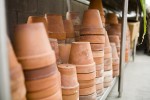
This is a floating image within the content of the page. Nullam id dolor id nibh ultricies vehicula ut id elit. Maecenas faucibus mollis interdum. Curabitur blandit tempus porttitor. Lorem ipsum dolor sit amet, consectetur adipiscing elit. Vestibulum id ligula porta felis euismod semper.

Use the button labeled "Insert Template" within the WYSIWYG toolbar to add an image with a caption to the page. Morbi leo risus, porta ac consectetur ac, vestibulum at eros. Maecenas sed diam eget risus varius blandit sit amet non magna. Donec sed odio dui. Duis mollis, est non commodo luctus, nisi erat porttitor ligula, eget lacinia odio sem nec elit. Aenean eu leo quam. Pellentesque ornare sem lacinia quam venenatis vestibulum. Lorem ipsum dolor sit amet, consectetur adipiscing elit. Aenean lacinia bibendum nulla sed consectetur. Nullam quis risus eget urna mollis ornare vel eu leo. Cum sociis natoque penatibus et magnis dis parturient montes, nascetur ridiculus mus. Aenean lacinia bibendum nulla sed consectetur. Aenean lacinia bibendum nulla sed consectetur. Maecenas faucibus mollis interdum. Nullam id dolor id nibh ultricies vehicula ut id elit.
A simple pull-quote without attribution can be achieved with the Blockquote format in the Formats dropdown of the WYSIWYG toolbar.
However, to create a quote citing an author, choose Blockquote with Attribution from the Insert Template dialog.
Sociis natoque penatibus et magnis dis parturient montes, nascetur ridiculus mus. Vestibulum id ligula porta felis euismod semper.
Graphic Design Faculty
You can create tables within the WYSIWYG editor. Styles for tables should allow for some leeway with markup, but in general, tables must have well-formed syntax. One thing to note: the WYSIWYG table creator will not automatically create a table header or <thead> element. To achieve the table header style, some custom markup is needed. Read more about the table element.
| Table Header Col 1 | Col 2 | Col 3 | Col 4 |
|---|---|---|---|
| Consectetur Venenatis Pellentesque | Euismod Justo Vulputate | Lorem Tortor Etiam Tristique | Vulputate Malesuada Euismod |
| Tristique Consectetur Magna Fringilla | Condimentum Ligula Ullamcorper | Consectetur Pellentesque Vehicula Vestibulum Elit | Quam Nullam Risus |
| Quam Ipsum | Sit Justo Malesuada Tortor | Tristique Quam | Condimentum Ornare Ipsum Euismod |